Smart Plug Control

Equipment Control

GPL-3.0

Smart Plug Control lets you turn TP-Link Kasa and Tapo smart plugs on and off directly from your N.I.N.A. imaging sequences — power up dew heaters, mounts, or dew controllers automatically, and shut equipment down safely when a sequence ends. Built for multi-tenant remote observatories: each plug is only ever shown and controlled if it's physically reachable on your own network, so your equipment stays isolated from other users sharing the same site.

Includes a dockable equipment panel, on/off and LED control, protected-plug safeguards, and sequencer triggers and conditions that react to power consumption or unexpected state changes.


Getting Started

Requirements

  • N.I.N.A. 3.0.0.2017 or newer
  • A TP-Link account (Kasa or Tapo) with your smart plugs already set up in the corresponding app
1

Install

Open N.I.N.A., go to Options → Plugins, find Smart Plug Control in the list, and click Install. Restart N.I.N.A. if prompted.

2

Connect your account

Go to Options → Plugins → Smart Plug Control and enter your TP-Link username and password. Your password is encrypted on disk and never shown in plain text.

3

Load your plugs

Click Refresh Plug List. Every plug on your TP-Link account will appear — uncheck Visible in NINA for any plug that isn't part of your imaging setup.

4

Use the equipment panel

A dockable panel appears in the Imaging tab, showing live on/off status for each plug, with toggles, an editable equipment name (e.g. "Dew Heater", "Mount"), and a Protected lock for critical equipment.

5

Automate with the sequencer

Under the Smart Plug Control category in the Advanced Sequencer, you'll find instructions (Turn Plug On/Off, Turn All Plugs On/Off, LED control), loop conditions (Plug Is On/Off, Consumption Above/Below), and triggers (Plug State Changed, Consumption Threshold Changed) to fully automate your equipment power.

Full documentation, source code, and issue tracker

https://github.com/crepusculum-space/nina.plugin.smartplugcontrol Open on GitHub ↗

SmartBlink

Image Review

v1.0

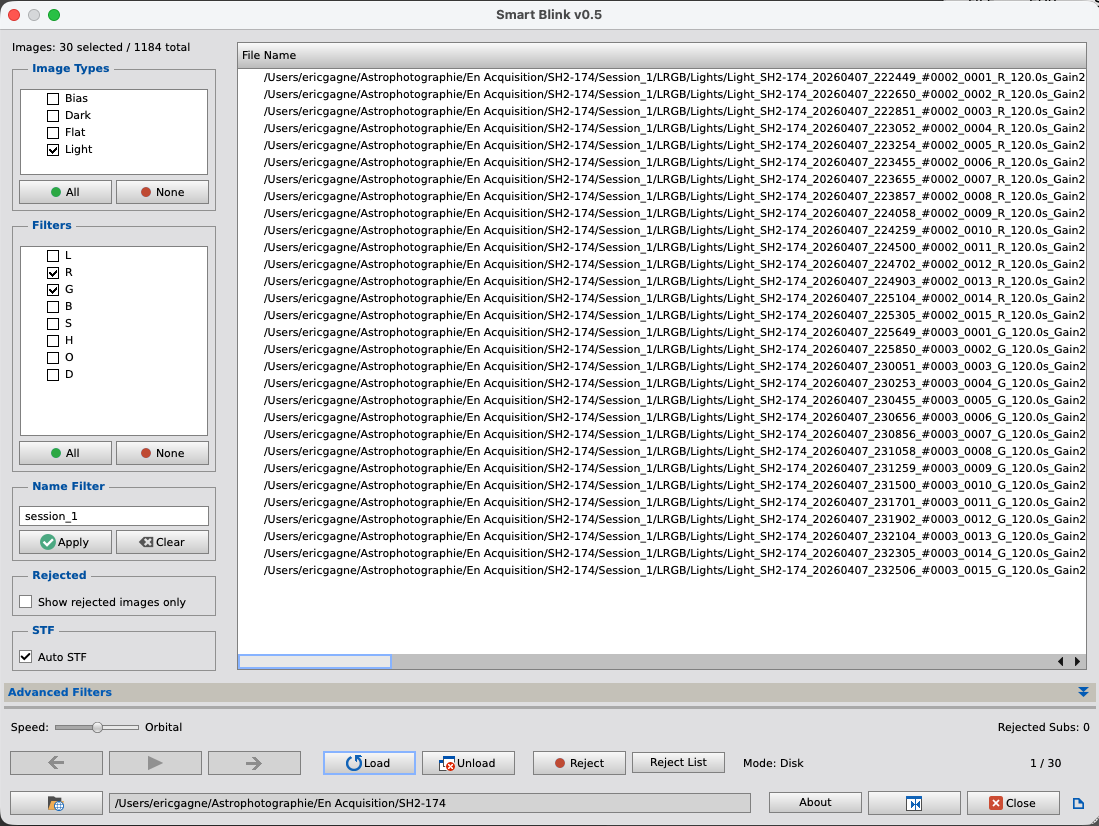
PixInsight's built-in Blink tool is simple by design — you select files from your computer and it cycles through them, then you must unload, select a new set of images and so on. SmartBlink starts where Blink stops.

Point SmartBlink at any folder and it recursively scans it and all subfolders, finding every FITS and XISF files in them. It then reads the FITS headers of each file to extract image type (Light, Flat, Dark, Bias), filter name, and every other keyword present — giving you a fully indexed list of your frames before you review a single image.

From there, dynamic filters let you narrow the view to exactly what you want to inspect: only your Ha lights, only a specific exposure time, only frames matching any FITS keyword in your dataset. Filters update the list instantly without rescanning.

Images are loaded into a cache for smooth, fast playback. Navigation is frame-by-frame or continuous with adjustable blink speed. Each image is automatically displayed with a proper STF stretch so you're always looking at a well-exposed preview — no more black screens on uncalibrated raw frames.

As you review, frames can be flagged for rejection with a click on a button. The reject list accumulates across as you iterate through filtering and blinking. They list of rejected images can be copied to the clipboard, or acted upon directly — SmartBlink can physically move rejected files to a destination folder of your choice, preserving the original subfolder structure.

SmartFITS

File Management

v1.0

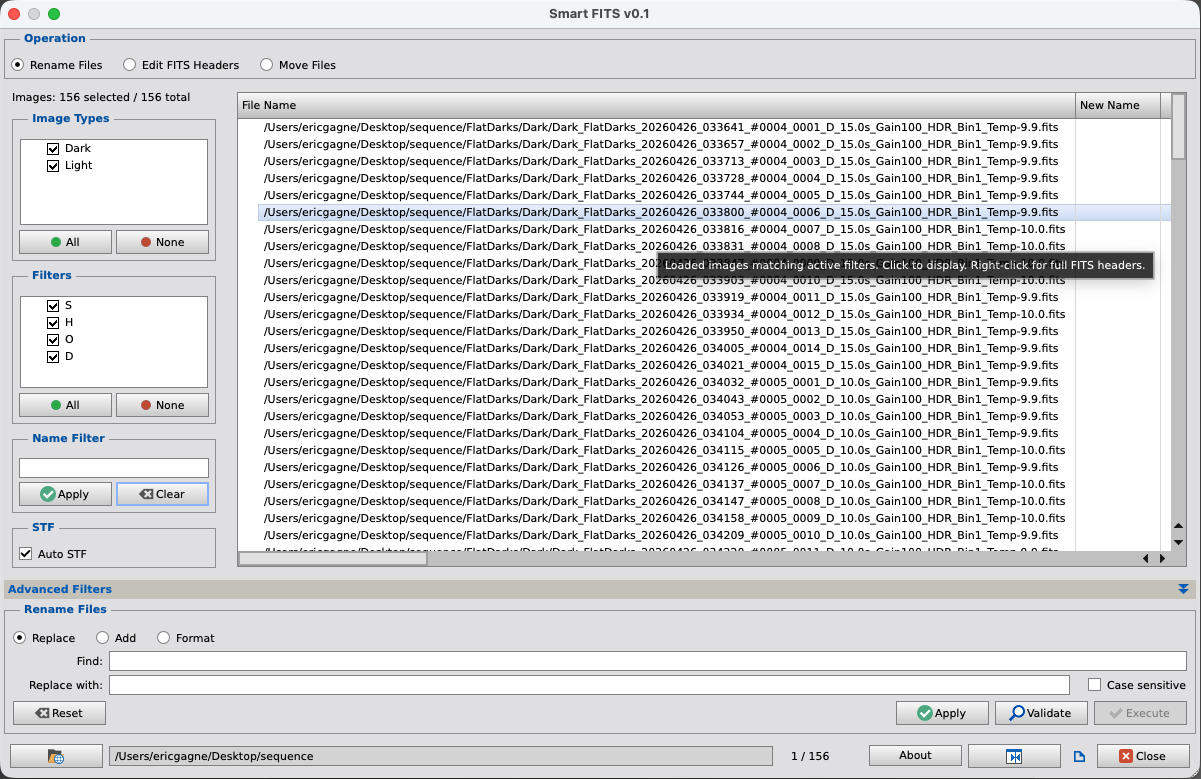
SmartFITS is a file and metadata management utility for PixInsight. Scan an entire folder tree once, then rename files in bulk, edit FITS header keywords, or move files — all from a single interface, all with preview, validation and confirmation before anything is written to disk.

The script operates in three modes. In Rename mode, you can find and replace text in filenames, add a prefix or suffix, or build new filenames from scratch using a template system with placeholders drawn from FITS header values and fixed text you enter — for example, renaming an entire session's worth of files to a consistent format based on their actual metadata.

In FITS mode, you can edit header keywords in bulk across any selection of files: set a keyword to a new value, add a keyword that doesn't exist yet, delete a keyword, or rename one. Operations can be saved as named presets and reapplied in future sessions — useful for correcting recurring metadata issues from your capture software.

In Move mode, files can be relocated using a destination template, again with FITS keyword placeholders. This makes it easy to automatically sort a mixed folder of files into a structured hierarchy based on their actual content.

In all three modes, filters let you narrow the working set before applying any operation — by image type, filter name, filename fragment, or any FITS keyword with full operator support (=, ≠, >, <, contains). Every pending change is shown as a preview in the file list before you commit.

Smart Astro Planner

Planning
Open App →

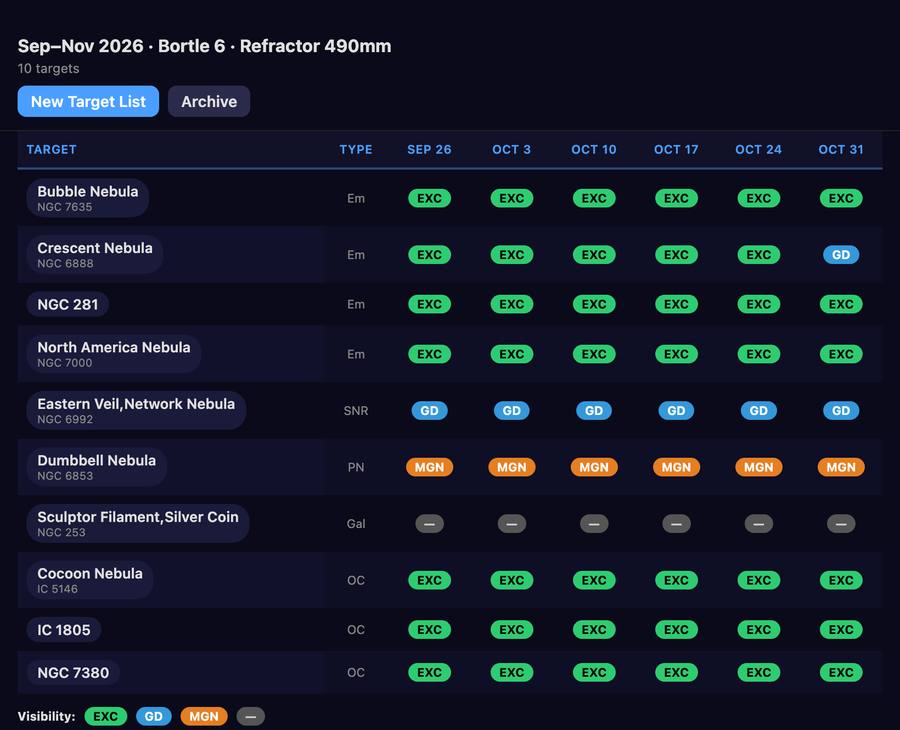
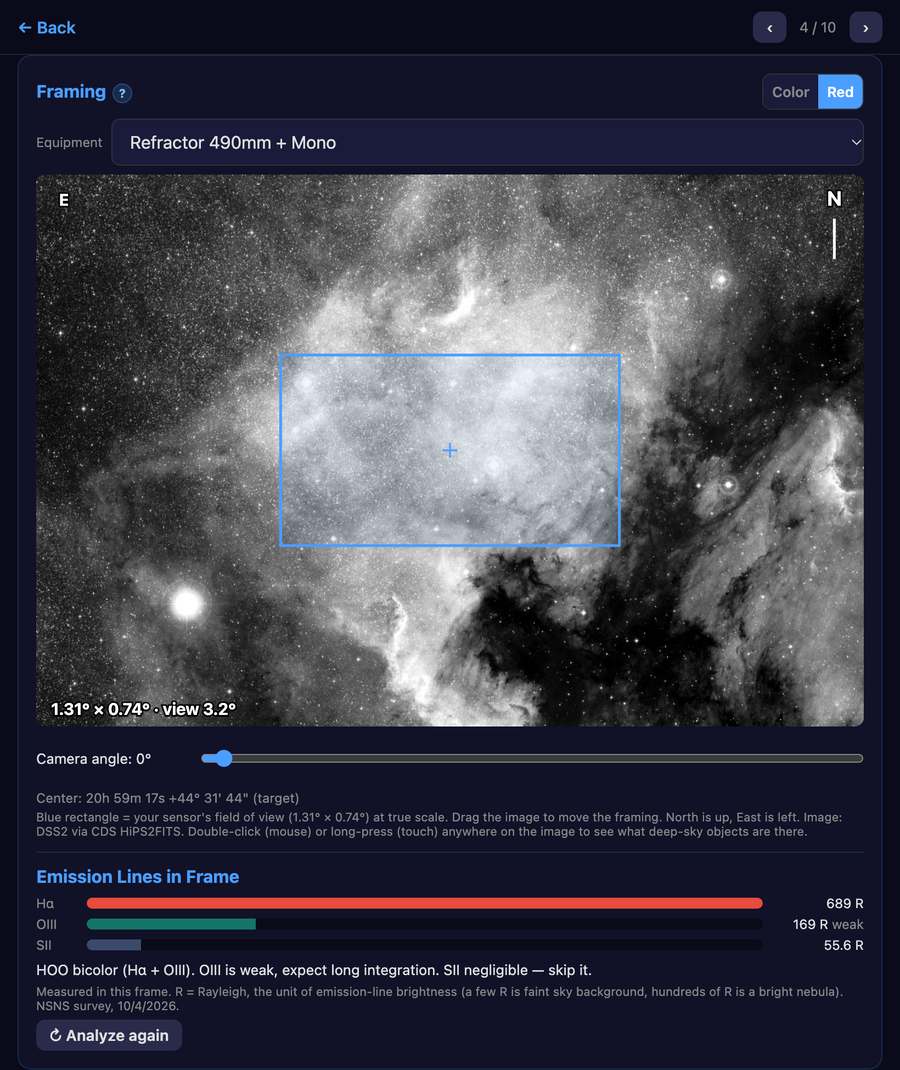
Most atlases answer "What can I photograph tonight?" Smart Astro Planner answers a different question: "What are my options over the next few weeks?" Give it your site and a period of one to twelve weeks, and it builds a list of targets that are genuinely usable from your backyard — above your minimum altitude, inside the parts of the sky you can actually see, week by week. Equipment comes into play per target, when you preview the real framing against the sky.

The app runs entirely in the browser with no account or subscription. Once installed as a PWA, target filtering and visibility calculations work offline. An optional Claude API key enables AI-generated capture advice directly within the app; without one, the app generates a ready-to-paste prompt you can use with any AI service.

See the help & getting started guide for a full description of all features.


Key Features

Target Catalog & Filtering

  • 19,092+ deep-sky objects from 12 professional databases (OpenNGC, Sharpless, RCW, Barnard, Green SNR, and more)
  • Target type sliders (0–10) for weighted selection across 9 categories: Emission Nebula, SNR, IFN, Reflection Nebula, Planetary Nebula, Galaxy, Open Cluster, Globular Cluster, Dark Nebula
  • Horizon mask per observing site — sectors of sky blocked by buildings or trees are excluded from both target selection and visibility ratings

Visibility Analysis

  • Weekly ratings per target: EXC ≥4 h/night · GD ≥2 h · MGN >0 h
  • Ratings account for your minimum imaging altitude and horizon mask — the same target can be EXC in an open field and MGN from a backyard with a house to the south
  • Interactive altitude profile with twilight zone shading and moon angular separation
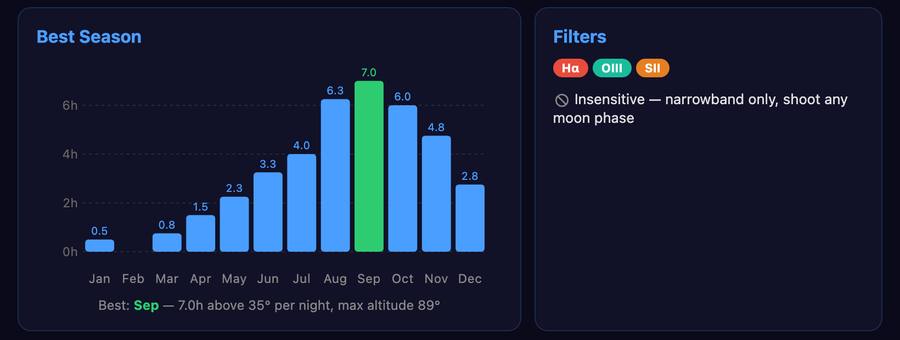
  • Best Season chart — hours per night above your minimum altitude, month by month

Framing Simulator

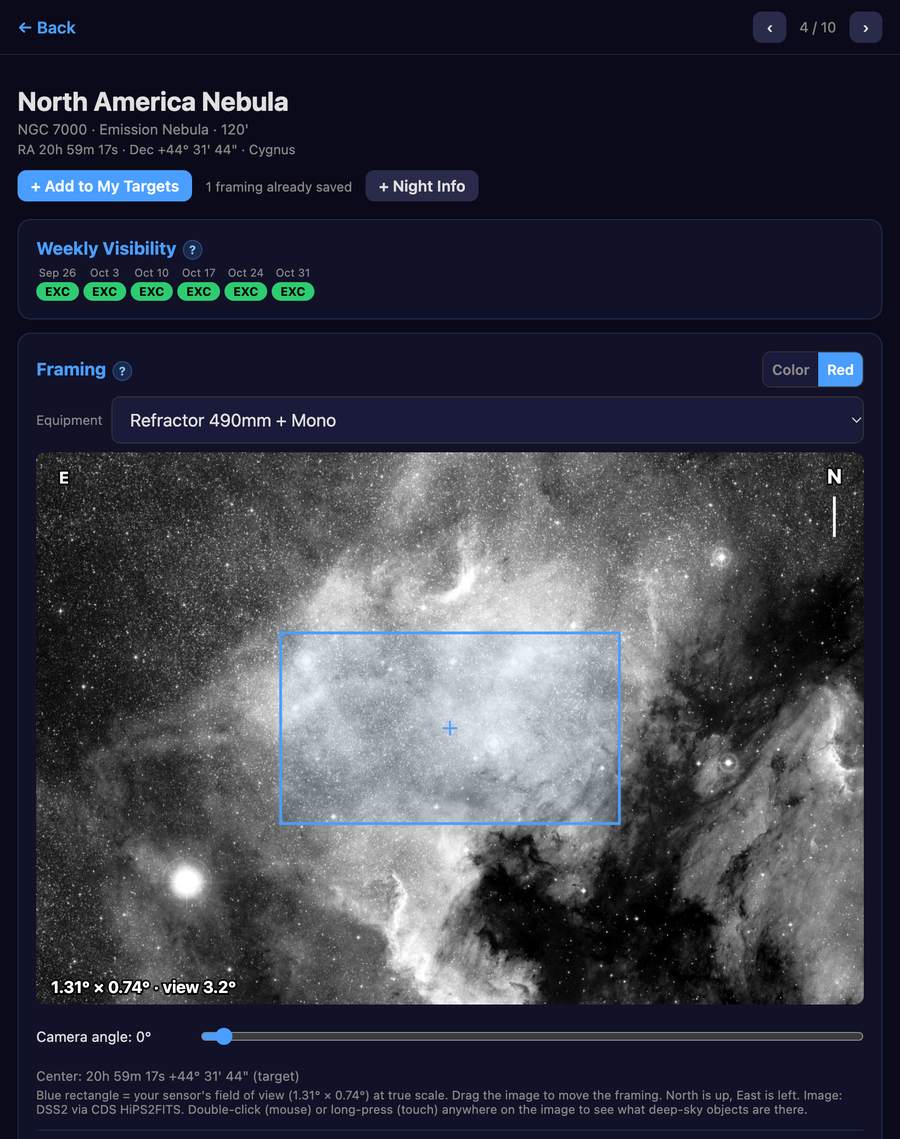
  • Real sky imagery (DSS2) centered on each target, with your sensor's field of view drawn at true scale
  • Drag to reposition, rotate camera angle with a slider, switch equipment configurations
  • Emission-line analysis (Hα, OIII, SII) of the current frame using the Northern Sky Narrowband Survey — suggests LRGB, HOO, SHO, bicolor, or single narrowband based on measured signal

My Targets & Capture Advice

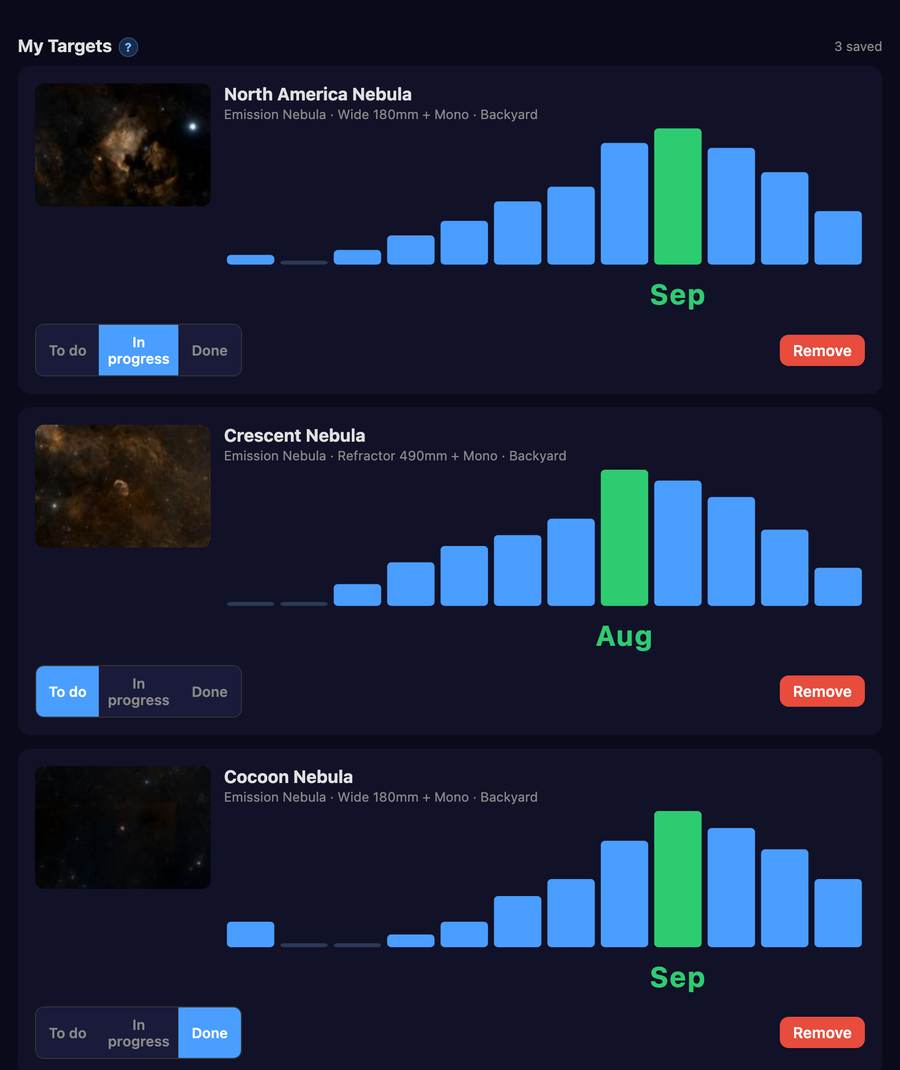
  • Save specific framings (position, angle, equipment) as My Targets, with status tracking: To Do, In Progress, Done
  • Capture Advice — AI-generated filter strategy and integration split based on target, equipment, and Bortle class, with no dates or weather involved (assisted mode with Claude API key, or free prompt export for any AI)
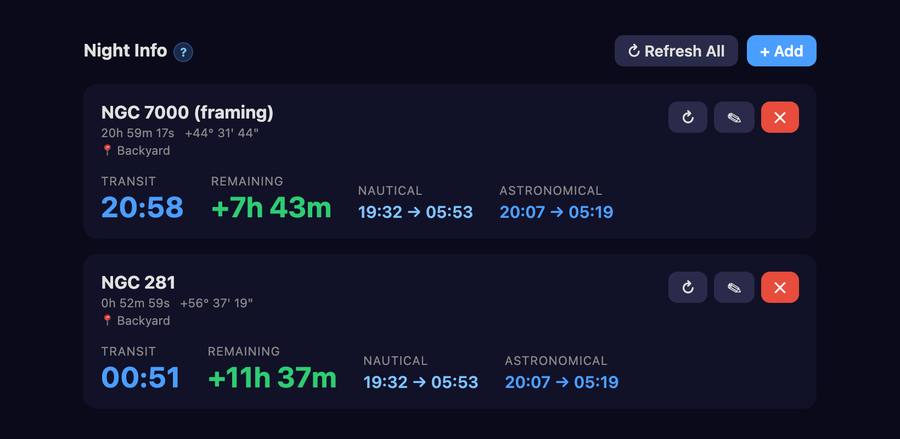
  • Night Info tab — transit times and twilight windows for saved targets, useful for meridian flip planning
  • Backup & Sync — full JSON export/import with merge strategy for sharing between devices

Gallery

Paste this URL into PixInsight's Resources > Updates > Manage Repositories

https://crepusculum.space/pixinsight/

How to install

In PixInsight, open Resources > Updates > Manage Repositories. Click Add, paste the URL from above, and click OK. Then go to Resources > Updates > Check for Updates — all available Crepusculum scripts will appear in the update list. Select them and click Apply.

Scripts and documentation are installed directly into PixInsight's script and documentation directories. Once installed, they appear in the Scripts menu under the Crepusculum group.

Future updates to existing scripts and any new scripts added to the package will be available through the same update mechanism — no need to revisit this page.

Known Issues

Current bugs and limitations, with workarounds where available.

SmartBlink

No known issues at this time.

SmartFITS

No known issues at this time.


Roadmap

Planned improvements and upcoming additions. Order does not necessarily reflect priority or timeline.

SmartBlink

Performance improvements for large datasets. Documentation improvements.

Addition of an image analysis tool — star count, FWHM, sky background, and other quality metrics to help make more informed reject decisions.

SmartFITS

Documentation improvements.

About Crepusculum

Crepusculum was born out of a simple need — I wanted scripts that matched my own workflow. Rather than keep them to myself, I chose to distribute them freely to the PixInsight community, in the hope that other imagers might find them just as useful.

Crepusculum significat dubium — twilight means uncertainty.

— Marcus Terentius Varro, De Lingua Latina

The name comes from the Latin word for twilight — that specific moment when the last traces of daylight fade and the deep sky becomes accessible. It felt like the right name for a collection of tools designed to help reveal what hides in the dark.


About me

Bas-Saint-Laurent region, Quebec

My name is Eric Gagné. I'm a French-Canadian software developer with 40 years of experience in ERP systems. I started astrophotography in 2023 and image from eastern Quebec, in the Bas-Saint-Laurent region — a mostly rural area with Bortle 5–6 skies, far enough from city light pollution to make deep-sky imaging genuinely rewarding.

The scripts at Crepusculum are the result of combining two passions — astrophotography and the creation of user interfaces that are pleasant to look at while being intuitive and easy to use. AI-assisted code generation handles the PJSR side of things, while each script reflects the same attention to workflow and usability that I've applied throughout my career as a developer.

For questions or help, join Astro Dev Hub — the Discord community for astrophotography tool developers and users. Use the link at the bottom of this page.

Map: Wikimedia Commons, CC BY-SA 3.0

September 2026

Astro Dev Hub is a new Discord community for astrophotography tool developers and their users. Developers can announce their tools, offer support, and recruit beta testers — all in one place. Users get direct access to the people who build the tools they rely on. A space to share, collaborate, and grow the astrophotography tooling ecosystem together.

Smart Astro Planner is now available as a Progressive Web App. Plan your imaging sessions weeks ahead — browse 19,000+ deep-sky objects, evaluate weekly visibility windows based on your location and equipment, and generate AI-assisted acquisition plans. Works offline once installed; no account or subscription required. See the help file or open the app from the Web Apps page.

August 2026

Smart Plug Control is now available in the N.I.N.A. plugin repository. Control TP-Link Kasa and Tapo smart plugs directly from your imaging sequences — automate power for dew heaters, mounts, and accessories, with full sequencer trigger and condition support. Free and open source (GPL-3.0).

May 2026

SmartBlink — Window size is now saved and restored between runs. Added the ability to select which FITS header values are displayed as columns in the file list.

SmartFITS — Window size is now saved and restored between runs.

SmartBlink and SmartFITS are now available. Head to the Download page for the repository URL and installation instructions.

April 2026

Every site has a first day, and this is ours. Crepusculum launched today — a home for the PixInsight scripts I've been building for my own workflow, now distributed freely to anyone who might find them useful.

The name comes from the Latin word for twilight — that specific moment every astrophotographer waits for, when the last traces of daylight fade and the deep sky becomes accessible. It felt like the right name.

Two scripts are nearly ready for release. SmartBlink is an enhanced replacement for PixInsight's built-in Blink tool — scan an entire folder tree once, then blink any subset instantly by applying filters. SmartFITS is a file and metadata management utility — bulk rename, edit FITS keywords, and move files, all with a preview before anything is written to disk. Both are in final testing. Stay tuned.